 By blogziro123@gmail.com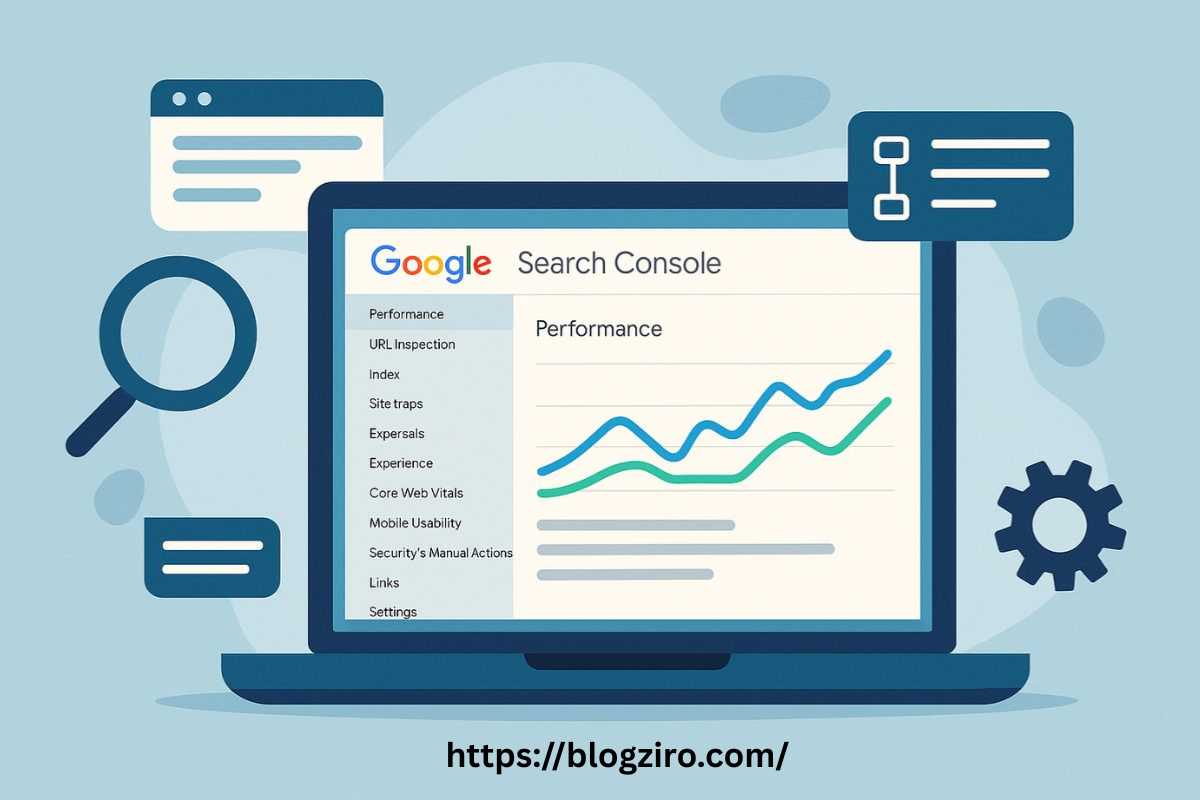
Google Search Console (GSC) The Ultimate Guide for Smarter SEO Growth
If you care about organic traffic, rankings, and real search performance, Google Search Console (GSC) should be one of your most-used tools. It’s not just a reporting dashboard — it’s a direct communication channel between your website and Google.
In this complete guide, you’ll learn what Google Search Console (GSC) is, how to set it up properly, which reports actually matter, and how to use its data to improve your SEO strategy. Whether you’re a blogger, business owner, SEO professional, or agency, this roadmap will help you unlock measurable growth.
What Is Google Search Console (GSC)?
Google Search Console (GSC) is a free tool provided by Google that helps website owners monitor, maintain, and troubleshoot their presence in Google Search results. It shows how Google crawls your site, how your pages perform in search, and where technical issues may be holding you back.
Unlike third-party SEO tools that estimate traffic and rankings, GSC provides first-party data directly from Google. That means impressions, clicks, click-through rate (CTR), indexing status, and crawl data come straight from the source.
If you’re serious about technical SEO, keyword performance tracking, or fixing indexing issues, GSC is non-negotiable.
What Does Google Search Console (GSC) Do?
At its core, Google Search Console (GSC) helps you answer three critical questions:
-
Are my pages indexed?
-
What keywords are driving traffic?
-
Is Google having trouble crawling my site?
Through its reports, you can monitor search performance, submit XML sitemaps, inspect URLs, identify crawl errors, analyze Core Web Vitals, and track mobile usability. It also alerts you to manual actions or security issues.
Think of it as your SEO control panel — showing both opportunity and risk in one place.
Who Uses Search Console and Why?
Google Search Console (GSC) is used by:
-
SEO professionals analyzing keyword performance
-
Content marketers optimizing blog posts
-
Web developers troubleshooting crawl errors
-
Ecommerce store owners tracking product visibility
-
Agencies managing multiple client websites
If you publish content online, you need visibility into how Google views your site. GSC bridges that gap by showing how your website performs in real search results — not just what analytics tools estimate.
How Is GSC Different from GA4?
Many people confuse Google Search Console (GSC) with Google Analytics 4 (GA4). While both are powerful, they serve different purposes.
GSC focuses on search performance — impressions, clicks, queries, indexing, and crawl data. GA4 tracks user behaviour after visitors land on your site — sessions, engagement rate, conversions, and events.
In simple terms:
-
GSC = What happens before the click.
-
GA4 = What happens after the click.
Using both together gives you a complete SEO performance picture.
How to Get Started with Google Search Console (GSC)
Setting up Google Search Console (GSC) is straightforward, but proper configuration ensures accurate data.
First, add your website as a property. You can choose between:
-
Domain property (recommended for full coverage)
-
URL prefix property (limited to a specific version)
After adding your site, you’ll need to verify ownership.
Google Search Console (GSC) Site Verification Methods
Google offers multiple verification methods:
-
DNS record (best for domain-wide verification)
-
HTML file upload
-
HTML meta tag
-
Google Analytics integration
-
Google Tag Manager
The DNS method is the most future-proof because it verifies all subdomains and protocols. If you’re managing a large website or ecommerce store, this is typically the best choice.
Search Console Metrics Definitions
Understanding GSC metrics is crucial for SEO success:
-
Impressions: How often your site appears in search results.
-
Clicks: How many times users clicked your result.
-
CTR (Click-Through Rate): Clicks divided by impressions.
-
Average Position: Your ranking for a query.
For example, if a keyword has high impressions but low CTR, your title tag and meta description may need improvement.
Data Freshness in Search Console
Google Search Console (GSC) data isn’t real-time. Typically, data appears with a delay of 1–3 days. However, performance trends remain highly reliable for SEO decision-making.
For ongoing campaigns, check GSC weekly rather than daily. SEO is about trends, not minute-by-minute changes.
GSC Features Overview
Google Search Console (GSC) includes several powerful reports designed to improve both technical SEO and content performance. Let’s break down the most important ones.
Main Dashboard Overview
The dashboard provides a snapshot of performance, indexing status, experience metrics, and enhancements.
It highlights critical issues such as:
-
Pages not indexed
-
Core Web Vitals problems
-
Manual actions
-
Security warnings
This is your starting point for identifying urgent SEO issues.
Insights
Search Console Insights simplifies performance data for content creators. It highlights top-performing pages, trending queries, and recent improvements.
If you publish blog posts regularly, this feature helps identify content that deserves updating or expansion — a powerful internal linking opportunity.
Performance Reports
The Performance report is where SEO strategy truly comes alive.
You can filter by:
-
Query
-
Page
-
Country
-
Device
-
Date range
This allows you to identify ranking opportunities — for example, keywords ranking in positions 8–15 that could be pushed to page one with optimization.
Search Results Report
This report shows organic search performance specifically from Google Search.
Use it to:
-
Discover new keyword opportunities
-
Analyze branded vs non-branded traffic
-
Monitor seasonal trends
Comparing Time Periods in GSC
Comparing 28 days vs previous 28 days helps identify growth or decline trends.
For example, if impressions increased but clicks didn’t, you may need better meta optimization.
Reviewing Your Search Data
Sort queries by impressions to find high-visibility keywords, then optimize content for better CTR and engagement.
Internal link suggestion: Link to a “How to Improve CTR” guide or “On-Page SEO Checklist” article here.
Discover Report
The Discover report shows traffic from Google Discover, often influenced by content freshness and authority.
Publish timely, engaging, and mobile-friendly content to improve Discover visibility.
News Report
For publishers, the News report tracks performance in Google News results.
If you run a news or media website, this report is invaluable for tracking topical authority.
Annotations
Annotations allow you to track changes such as site migrations, redesigns, or algorithm updates.
Document SEO changes so you can correlate them with performance shifts.
URL Inspection
The URL Inspection tool lets you check a specific page’s indexing status.
You can:
-
Request indexing
-
View crawl details
-
Identify rendering issues
URL Inspection Mini Case Study
Imagine publishing a new blog post that isn’t ranking. Using URL Inspection, you discover it hasn’t been indexed. After requesting indexing, it appears in search within days — a simple fix with measurable impact.
Page Indexing Report
The Page Indexing report shows which pages are indexed and why others aren’t.
Common issues include:
-
“Crawled – currently not indexed”
-
“Duplicate without user-selected canonical”
-
“Blocked by robots.txt”
Fixing these issues improves crawl efficiency.
Investigating Errors
Prioritize errors affecting high-value pages first. Not all errors require immediate action.
Sitemaps Report
Submitting an XML sitemap helps Google discover your important pages.
Keep your sitemap clean and updated — especially for large ecommerce sites.
Sitemaps Mini Case Study
After submitting a clean sitemap, a 500-page ecommerce store saw faster indexing for new product pages — improving search visibility significantly.
Experience Reports
Experience signals impact rankings.
Core Web Vitals
Core Web Vitals measure page speed, interactivity, and visual stability.
Improving metrics like LCP and CLS enhances both user experience and SEO performance.
HTTPS Report
The HTTPS report ensures your pages are secure.
If you still have HTTP URLs indexed, fix them immediately.
Enhancements
Enhancement reports show structured data issues such as FAQs, product schema, and breadcrumbs.
Proper schema improves rich results visibility.
Shopping
The Shopping report helps ecommerce stores optimize product visibility in search results.
Monitor structured data errors to maximize product listing performance.
Ungrouped Reports
Some reports fall outside standard categories but are equally valuable.
Links Report
The Links report shows internal and external backlinks.
Use it to identify:
-
Top linked pages
-
Internal linking gaps
-
Anchor text patterns
Crawl Stats Report
The Crawl Stats report shows how often Googlebot crawls your site.
Sudden drops may indicate technical problems.
Pro Tips: Getting the Most from Google Search Console (GSC)
To unlock full potential, integrate GSC with other tools.
Connecting Search Console with GA4
Linking GSC with GA4 allows you to see search queries alongside user behavior metrics.
This helps identify high-traffic keywords that don’t convert — perfect optimization targets.
Using Search Console Data in Looker Studio
Export GSC data to Looker Studio for custom dashboards.
This is especially useful for agencies reporting to clients.
Using the Search Console APIs
Developers can use the Search Console API to automate reporting and analyze large datasets.
This is ideal for enterprise-level SEO.
Platform Integrations: Making GSC Easier to Use
Many website builders and CMS platforms integrate directly with Google Search Console (GSC). These integrations simplify verification, indexing requests, and reporting.
For example, built-in SEO dashboards often display GSC data directly inside your CMS — saving time and improving workflow efficiency.
If you’re using WordPress, Shopify, or another platform, explore their GSC integrations to streamline SEO management.
Google Search Console (GSC) Is Your Roadmap to Better SEO
Google Search Console (GSC) isn’t just another SEO tool — it’s your direct line to Google’s search engine.
By understanding indexing, monitoring performance data, fixing technical errors, and optimizing based on real search queries, you create a sustainable growth strategy.
If you’re not checking GSC weekly, you’re missing critical SEO insights.
Related Posts
For stronger internal linking and improved topical authority, consider linking this guide to:
-
On-Page SEO Checklist
-
Technical SEO Audit Guide
-
How to Improve Organic CTR
-
XML Sitemap Best Practices
-
Core Web Vitals Optimization Guide
Get More SEO Insights Right to Your Inbox
SEO evolves constantly. Staying updated with algorithm changes, indexing updates, and performance strategies keeps your website competitive.
Bookmark this guide to Google Search Console (GSC), implement the strategies above, and revisit your data regularly. SEO success isn’t guesswork — it’s informed optimization based on real search data.